Top Free Workday AI Features Available Now

By now, you’ve seen the roadmap of new AI agents and features coming to Workday. Many of them require you to sign a new UMSA and use Flex Credits, the new Workday currency.

Lost in the noise are seven AI features you can turn on today – no Flex Credits or UMSA required. They cover everyday work in recruiting, talent, benefits, and more, and in many tenants that went live years ago, they’re sitting switched off.

Here’s how each one works, what it takes to turn on, and where it helps first.

Generate Job Descriptions with AI

Generate with AI uses Workday generative AI to give recruiters, managers, and HR teams a head start on one of the most time-consuming parts of hiring and job architecture: writing the job description.

How Does It Work?

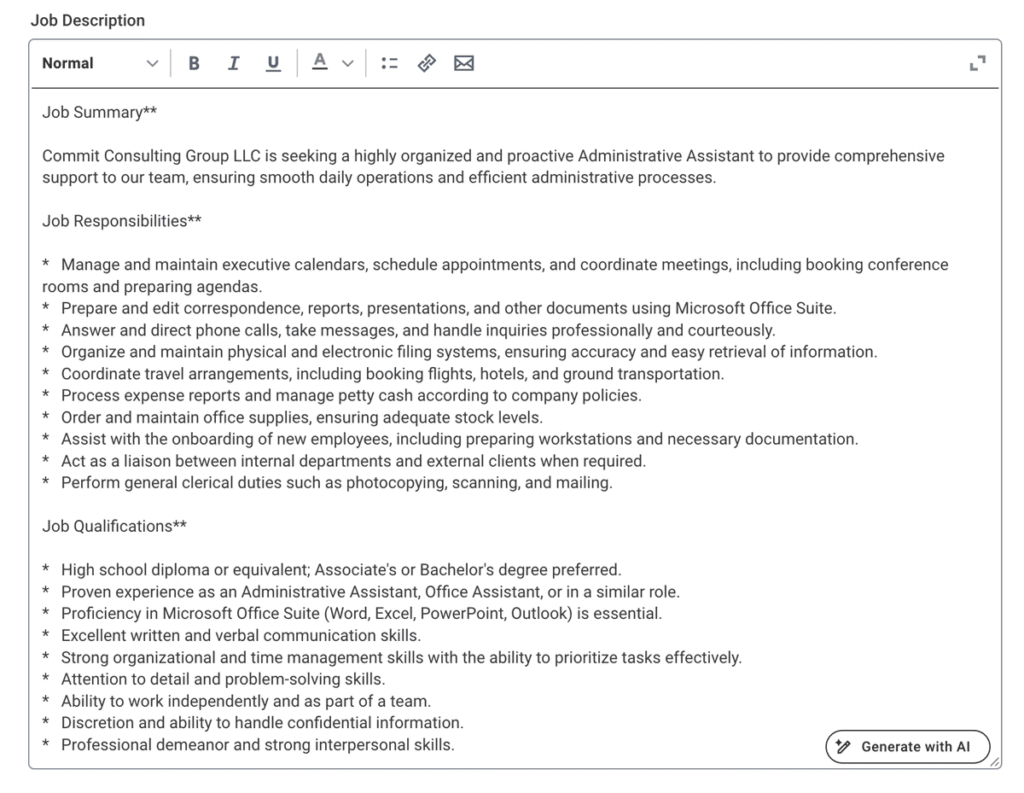
When the feature is configured, a Generate with AI button appears directly on the Job Description field. One click produces a structured draft, including a summary, responsibilities, and qualifications, right in the rich text editor. The user reviews, edits, and finalizes it before saving.

The feature is available in two places:

  • Job Requisitions: it works within the Create and Edit tasks for standard, evergreen, and confidential requisitions. It draws on the Job Posting Title, the Company Name, and the Skills added to the requisition.
  • Job Profiles: it works within the Create Job Profile and Edit Job Profile tasks. It draws on the Job Profile Name, the Company Name, and the user’s preferred display language.

Drafts can be generated in English (US, UK, and Canada), French (France and Canada), German (Germany and Switzerland), Japanese, Korean, and Spanish.
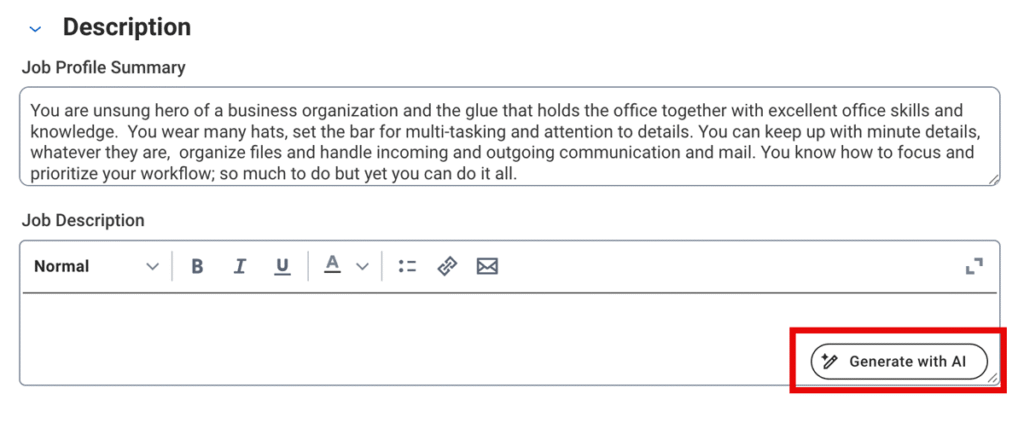
Screenshot of Job Description section in Workday highlighting the new "Generate with AI" button.
Screenshot of Job Description section in Workday after having been filled in by the "Generate with AI' feature.

What Do You Need to Turn It On?

  • Security: access is controlled through the Machine Learning domains for Job Descriptions (for requisitions) and the Job Profile: Generate Job Descriptions domain (for profiles), so the button only appears for the groups you choose.
  • Agreement type: customers on an MSA agreement need to opt in through the Innovation Services task. UMSA customers have access automatically.
  • Data: since 2025 R2, English job descriptions are generated by a third-party large language model. That means there is no data opt-in for requisition or posting data and no wait time for model training. Your tenant data is not used or stored to train the model.

What Should You Watch For?

  • Generated text is never saved automatically. Users are responsible for reviewing every draft for company voice, culture, and local legal requirements.
  • Workday has evaluated the feature as low risk for bias because it works from job title and skills rather than candidate or demographic data.
  • The button is not currently available on the Start Job Requisition task.

Where Does It Help First?

  • A recruiter opens a new requisition for a role the team hasn’t hired in a while, selects the posting title and skills, and clicks Generate with AI to get a structured first draft. They tailor the responsibilities and add team-specific details instead of starting from a blank page, which gets the requisition posted faster.
  • A Compensation or HR team cleaning up job architecture uses the button on Edit Job Profile to draft descriptions for profiles that are missing them or are out of date, then reviews each one for consistency across the organization. Multilingual employers can generate drafts in the user’s preferred language to support global job profiles.

Talent Highlights

Talent Highlights uses Workday AI to turn Talent data you have already collected into usable highlights for each direct report, so a manager starts a development conversation with something in hand.

How Does It Work?

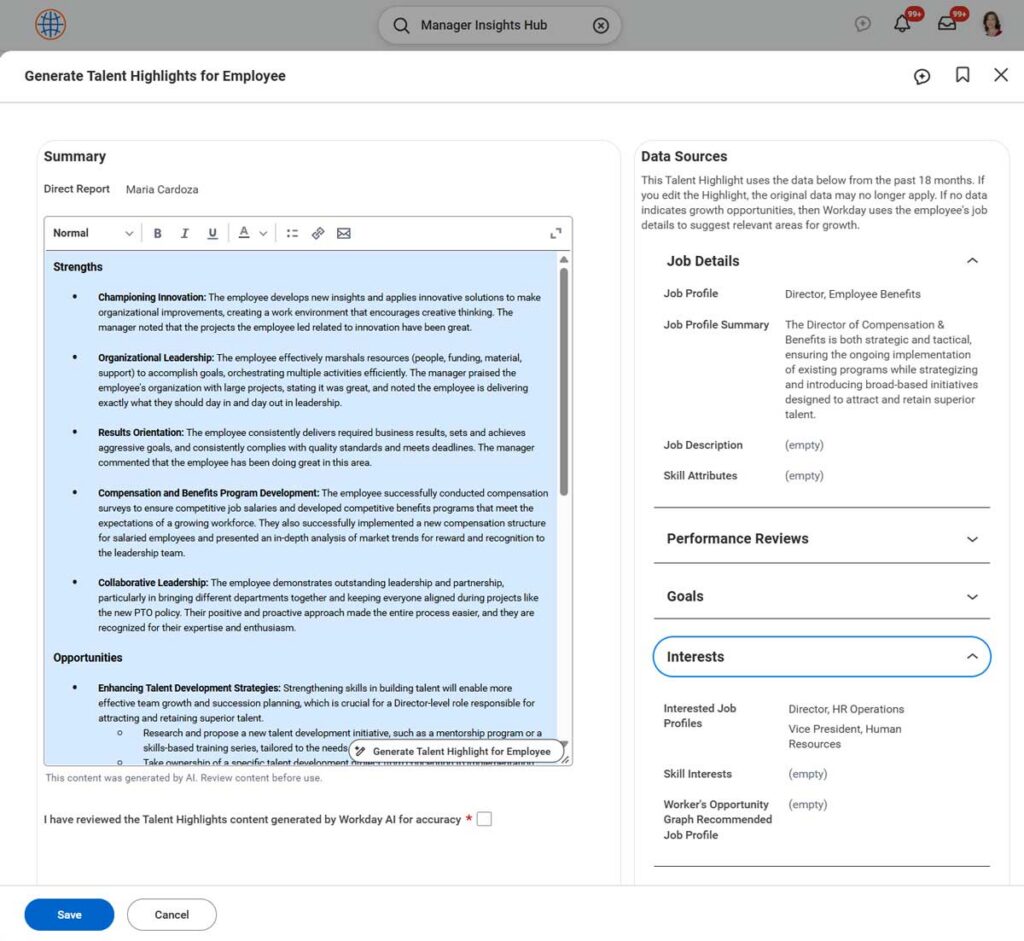
Workday looks at the most recent 12-to-18-month window and references job details, recent performance reviews, goals, feedback, skills, development items, and interests. From that data it creates a talent overview of strengths and opportunities specific to each worker. If no data points to growth opportunities, Workday uses the worker’s job details to suggest relevant areas for growth.

Managers generate, view, and update Talent Highlights for each of their direct reports in the Manager Insights Hub.
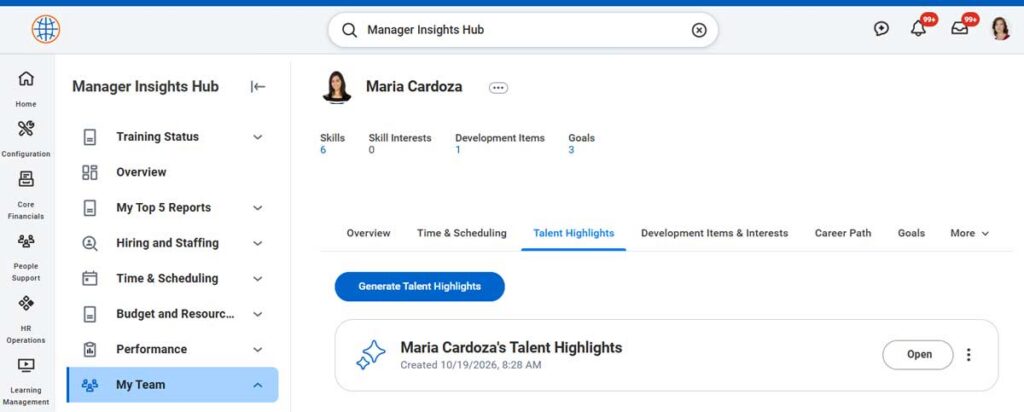
Screenshot of the Manager Insights Hub with Generate Talent Highlights button.
Screenshot of the Generate Talent Highlights for Employee feature in Workday.

What Do You Need to Turn It On?

  • Eligible workers: contingent workers are automatically excluded from receiving Talent Highlights. You can also exclude locations and location hierarchies.
  • Enough data: a worker needs at least 150 combined words of talent data from reviews, feedback, and similar sources.
  • No reviews in progress: a worker must not have any in-progress reviews. This keeps Talent data accurate and up to date during performance review cycles.
  • Enable & secure domains for manager visibility (Worker Data: Talent Highlights) and administrative access (Set Up: Talent Highlights). Help text can be customized in tenant settings (Edit Tenant Settings – HCM).

What Should You Watch For?

  • The manager confirms they have reviewed the content for accuracy before saving, and the page notes that the content was generated by AI.
  • If a manager edits a highlight, the original data may no longer apply to the edited text.

Where Does It Help First?

  • A manager getting ready for a review conversation generates highlights for each direct report, then edits them with what they know firsthand.
  • A manager planning development conversations starts from the highlights and the Development Items and interests already on the worker’s record.

AI-Suggested Feedback Improvements

For self-requested and role-requested feedback, Workday can suggest improvements to the responses people write, so the feedback that reaches the recipient is clearer and more useful.

How Does It Work?

Suggestions are based on the SBI framework, which frames feedback through three parts: the Situation the feedback relates to, the Behavior that was experienced, and the Impact that resulted. After the feedback giver writes an answer and selects Suggest Response Improvements, the Improve Feedback with AI Suggestions panel reviews each part. It says whether that part is missing, well-written, or vague, and gives an example of how to strengthen it. Suggestions are visible in the feedback giver’s inbox while they fill out and submit feedback.
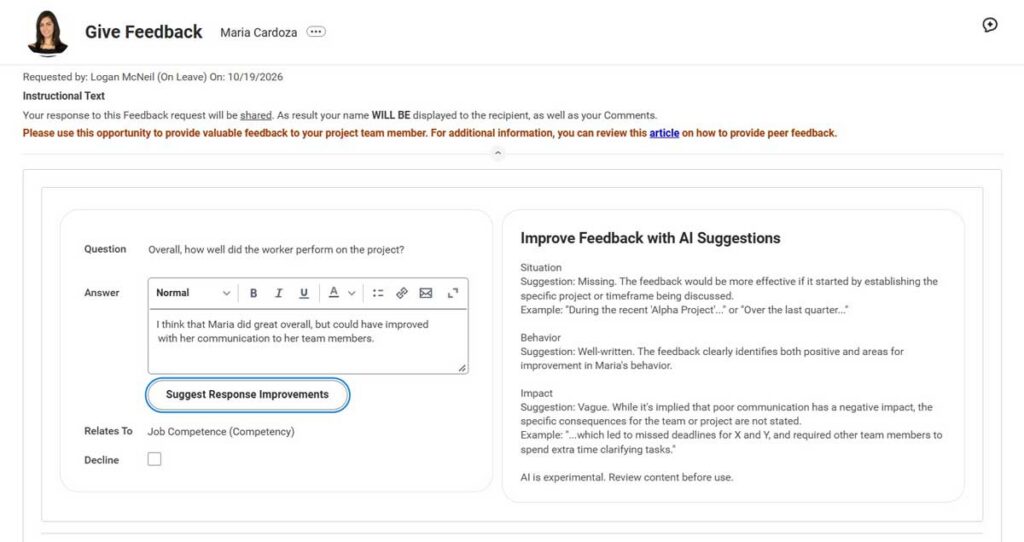
The Give Feedback screen showing the Improve Feedback with AI Suggestions feature.

What Do You Need to Turn It On?

  • Feedback type: it works with self-requested and role-requested feedback, the Request Feedback frameworks.
  • Enable & secure domain for generative feedback (Manage: AI-Generated Feedback Suggestions) and enable on feedback templates for feedback responses to allow Generative AI.

What Should You Watch For?

  • Suggestions only apply once feedback has already been filled out. The system does not write a feedback answer from scratch. It can only improve a response through suggestion.
  • The feature is currently not available for Anytime Feedback.
  • The panel carries a reminder that AI is experimental and content should be reviewed before use.

Where Does It Help First?

  • A peer answers a feedback request about a project teammate, and the suggestions prompt them to name the project or timeframe and spell out the consequences, so the recipient gets something they can act on.
  • An organization rolling out a feedback process gives people a built-in prompt for the SBI structure instead of relying on training alone.

Article AI: Draft and Translate Help Articles

Article AI uses Workday generative AI to help HR and IT content owners build and maintain Help Articles faster.

How Does It Work?

Inside the Help Article Workspace, authors select an existing Help Article or upload a DOCX or PDF (a policy handbook, for example) of up to 30,000 characters. They then choose an output format: a summary, a set of FAQs, or talking points for managers. The generated draft lands directly in the Article Editor, where the author reviews, edits, and publishes it like any other article.

Article AI also includes Article Translations. It translates published Help Articles into 27 supported languages, including Spanish, French, German, Japanese, and Simplified Chinese, using Google Cloud Translation. The output is also delivered to the Article Editor for review.
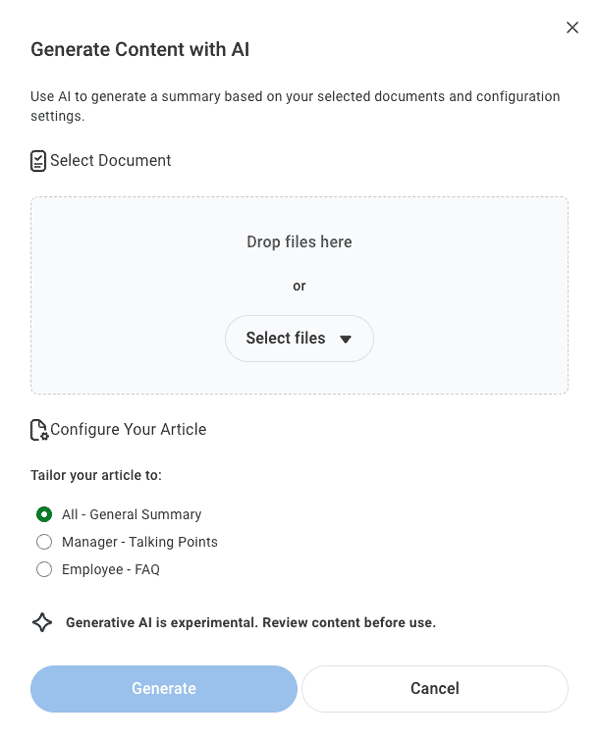
Screenshot of Generate Content with AI feature in Workday.
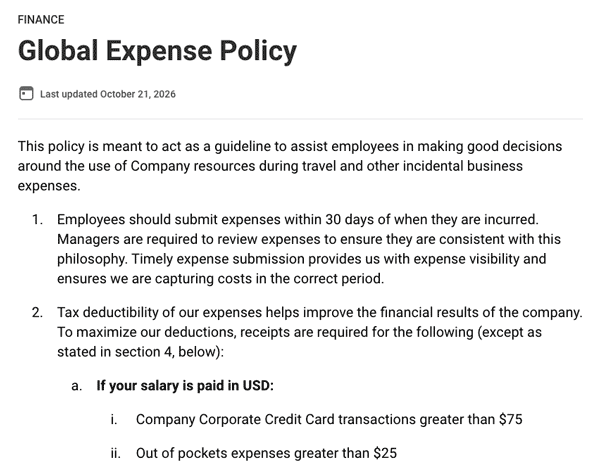
Screenshot of an article about Global Expense Policy generated by the Generate Content with AI feature in Workday.

What Do You Need to Turn It On?

  • SKU: Workday Help is required.
  • Source content: summarization supports DOCX, PDF, and existing Help Articles only.
  • Language: English produces the best results.

What Should You Watch For?

  • Drafts are never published automatically. Authors are responsible for reviewing all AI-generated content before it goes live.
  • Customer data is not used to train or fine-tune the underlying models.

Where Does It Help First?

  • HR uploads a 10-page PDF leave policy and generates an FAQ draft and a manager talking-points version in minutes, instead of rewriting the policy by hand for employees and people leaders.
  • A global employer translates a published remote work policy article into multiple languages to support employee self-service across regions without a separate translation project.

Generate Help Article for Benefit Plan

The Generate Help Article for Benefit Plan task turns benefit plan data already configured in Workday into a draft Help Article. It gives employees clear, consistent plan explanations at the moment they are making decisions, without anyone manually rewriting plan details into article form.

How Does It Work?

A benefits administrator selects a Benefit Plan and a Plan Data as of Date. Workday generates a plain-language article using details such as plan name, provider, plan type, worker and dependent eligibility, overage dependent eligibility, expanded plan details, and plan costs. The draft is placed automatically in the Help Workspace for the administrator to review, edit, and publish.
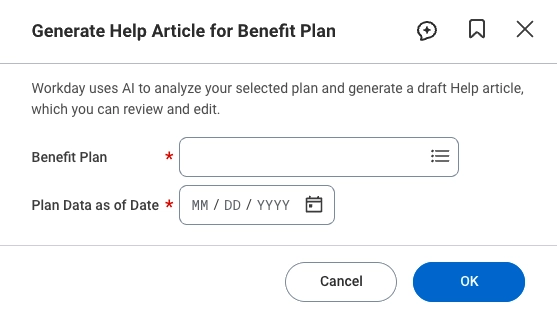
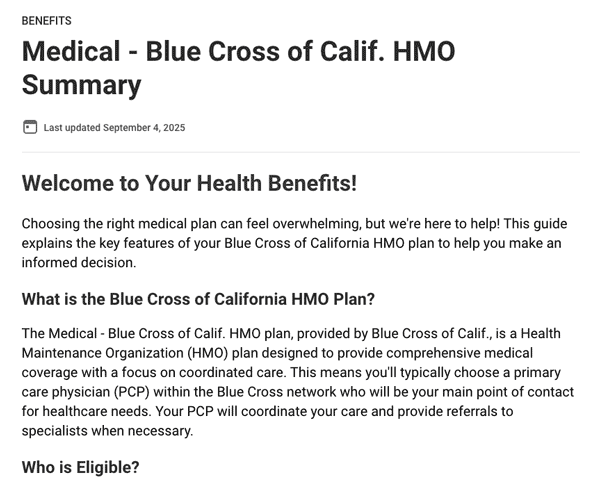
Screenshot of the Generate Help Article for Benefit Plan feature in Workday.
Screenshot of a Benefits article titled Medical - Blue Cross of California HMO Summary. The article was created inside Workday using generative AI.

What Do You Need to Turn It On?

  • SKU: Workday Help is required.
  • Configured plan data: the article is built from benefit plan data already set up in Workday.

What Should You Watch For?

  • Articles are generated in English only.
  • Like Article AI, nothing is published until an administrator reviews and approves it.

Where Does It Help First?

  • Ahead of open enrollment, a benefits admin generates draft articles for each medical plan option, then refines the tone and adds company-specific guidance before publishing, so employees can compare plans in one place.
  • When a plan changes mid-year, the admin regenerates the article with the new effective date, so Help content stays aligned with the configured plan data instead of drifting out of date.

Pay Anomalies

Every payroll team audits before it pays. They run variance reports, compare against the last period, and go through exceptions line by line. It works, but it’s slow, and it only catches what your audit rules were written to look for. Workday Pay Anomalies adds machine learning to that review.

How Does It Work?

Every time you calculate payroll, Workday analyzes each pay result that’s in progress and predicts how likely it is to be abnormal. That covers on-cycle, off-cycle, and on-demand runs, plus recalculations. You don’t have to schedule or run anything. Results show up in the Pay Anomalies report automatically.

Pay Anomalies learns what normal looks like for your workforce from your current and historical payroll results and your worker data. When a result doesn’t fit that pattern, Workday flags it and gives it a confidence level of High, Medium, or Low. Where it can, it also gives a likely reason. It runs after pay calculation, so it shouldn’t slow down your payroll processing.

Your payroll team can use the report as a working audit queue:

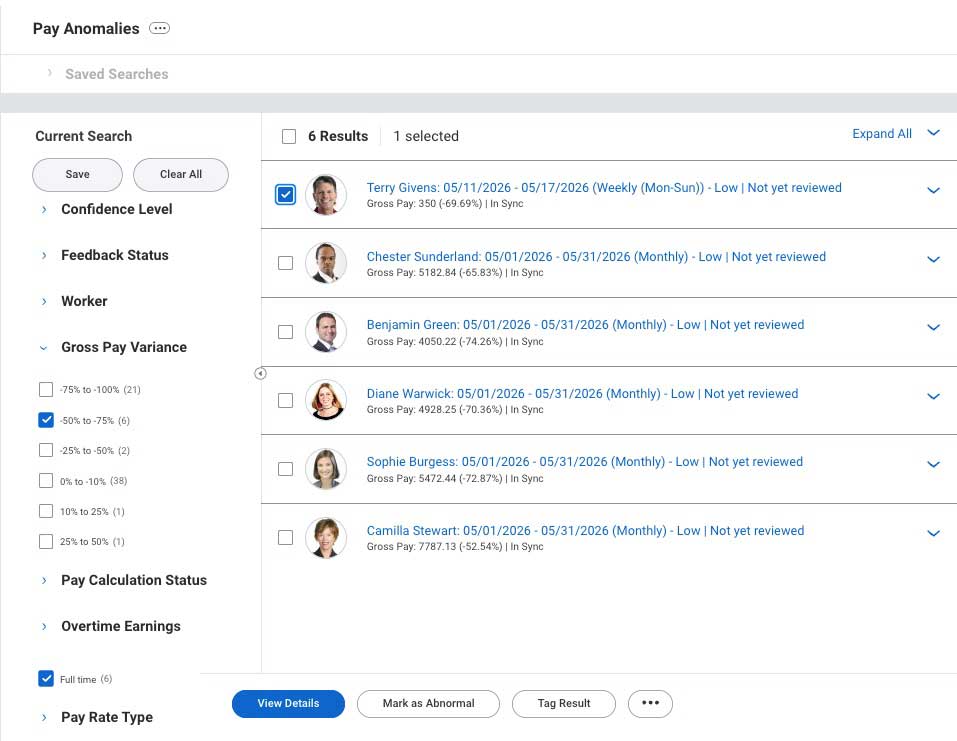
  • Filter and triage. Narrow results by confidence level, gross pay variance, time type, pay rate type, overtime, PTO, bonus earnings, and more. Save the audits you run most often so they’re one click away each cycle.
  • Teach the model. Mark results as Normal or Abnormal. Workday uses that feedback to score similar results higher or lower in future runs.
  • Tag and comment. Group results into categories that match your process, like “Requires manager approval” or “Missing hours,” without having to call them normal or abnormal.
  • Catch what your rules miss. The model can surface results your existing audit rules never flagged.

The more feedback your team gives, the better the model fits your organization. The aim, as Workday describes it, is that over time you see fewer flags and the ones you do see matter more.

What Do You Need to Turn It On?
  • Availability: Workday Payroll in the U.S., UK, Canada, and Australia.
  • Security: access follows pay group access, so each pay partner sees only the results they’re allowed to see.
  • Ramp-up: after you turn it on, allow up to three weeks for predictions to start appearing.
  • Subscription Agreement: If the UMSA has been signed, Pay Anomalies is automatically available to anyone with “Reports: Pay Calculation Results for Pay Group (audits)” domain. If the UMSA has not been signed, organizations can opt in to the innovation service under the payroll category and check the box for “payroll machine learning GA features”. They also must opt in for all 6 data categories
Screenshot of Pay Anomalies report in Workday, with six employees flagged for further payroll review.

What Should You Watch For?

  • A flag doesn’t mean the paycheck is wrong. It means the result is unusual and probably worth a look.
  • The model improves with your team’s Normal and Abnormal feedback, so plan for someone to own that step each cycle.

Where Does It Help First?

  • After a monthly run, a payroll admin filters to full-time workers with a large drop in gross pay variance, reviews each flagged result, and marks it Normal or Abnormal so similar results are scored accordingly next time.
  • A payroll team tags flagged results with categories that match its process, such as “Missing hours,” to route follow-up without calling the result right or wrong.

AI Receipt Scanning with Edge Detection

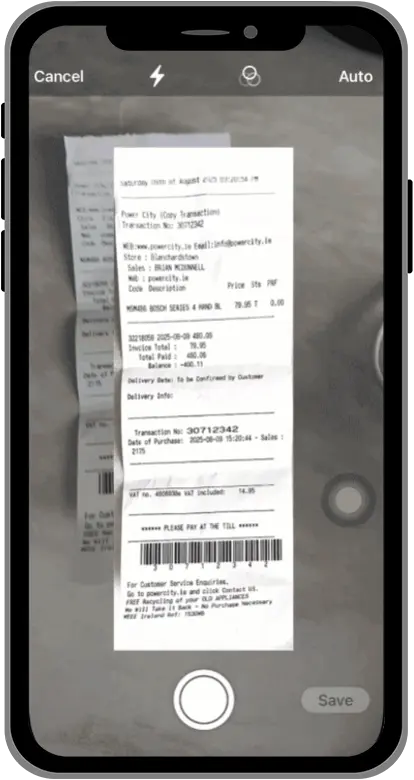
AI reads receipts photographed in the Workday mobile app and fills in the merchant, date, amount, and currency for the employee. Edge detection automatically captures the outline of the receipt, separating it from the background.

How Does It Work?

An employee photographs a receipt in the Workday mobile app. Edge detection finds the receipt’s outline, crops out background noise, and corrects skew. That cleaner image improves OCR accuracy, and the AI uses it to fill in the merchant, date, amount, and currency. Workday expects about 85% accuracy.
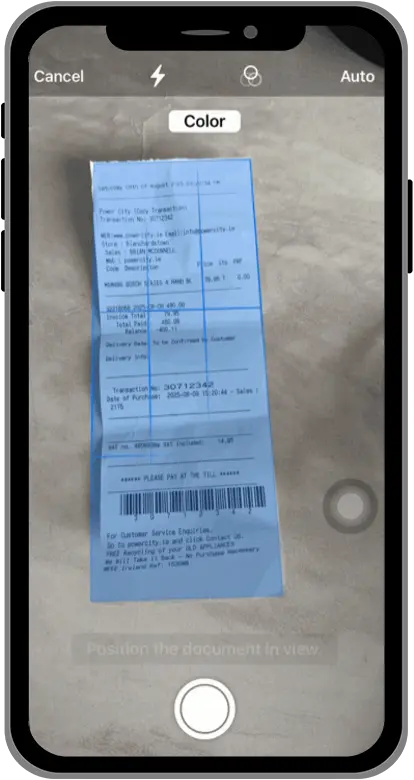
Screenshot of a mobile device with an expense receipt in the process of being scanned using AI edge detection.
Screenshot of a mobile device with an expense receipt captured using AI edge detection.

What Do You Need to Turn It On?

  • SKU: Workday Expenses is required.
  • Setup: Customers on an MSA agreement need to enable the Innovation Services feature and AI Data Contributions. Setup also runs through the Edit Tenant Setup – Machine Learning task.
  • Security: Access is controlled through the Self-Service: Receipt Scanning domain.
  • Access: Employees capture receipts in the Workday mobile app.

What Should You Watch For?

  • Because the expected accuracy is 85%, employees should still check the filled-in fields before they submit.

Where Does It Help First?

  • Faster submissions. Employees capture receipts on the go, with no manual entry.
  • Better scans. Cropping noise and fixing skew boosts OCR accuracy, which can also support accessibility for employees with visual impairments.
  • Cleaner approvals. Fewer miscategorized expenses mean cleaner reports for approvers.

You have Workday questions.

We have Workday answers.

How can we begin elevating your Workday experience?

3001 Maple Ave Ste 150
Dallas, TX 75201