The Manager Insights Hub is a one-stop shop for everything a leader could need. At Commit, we have seen clients keep it bare bones with only the most crucial tasks, dress it up for seasonal projects such as performance reviews, or elevate it for consistent, daily use.
Let’s walk through what the Manager Insights Hub is, why it matters, and how to enhance it.
What Are Workday Hubs?
A Hub is a Workday-delivered, centralized space where users can access their most frequently needed tasks, reports, dashboards, and resources in one place.
Each Hub includes:
- Links to key tasks and reports
- A configurable navigation menu
- A homepage with announcements, sections, and cards
Workday’s vision is simple:
- Improve discoverability
- Create predictable workflows
- Maintain context before and after transactions
What setup is required?
The following steps will set up your Manager Insights Hub:
- Access the task Maintain Functional Areas.
- Enable the Manager Insights Hub.
- While the bare-bones version of the Manager Insights Hub already creates a centralized space for managers, other domains and security policies for areas like Core Compensation, Advanced Compensation, and Time Off & Leave will provide additional functionality.
- Configure domain security policy for Manage: Manager Insights Hub.
- Activate Pending Security Policy Changes.
Why the Manager Insights Hub Matters
The Manager Insights Hub is a centralized experience where managers can:
- Access essential manager tasks
- Monitor team activity and performance
- Manage hiring, compensation, and time touchpoints
- View automated insights and intelligent suggestions
Before, managers had to react to emails and reminders. Now, they have everything they need at their fingertips to stay ahead of any issues.
Elevating Your Manager Insights Hub
The following screenshots showcase how to elevate each section in the Manager Insights Hub.
Overview page
The Overview page is a great place for high priority items. Announcements can be used to call out upcoming cyclical processes, push out content for new features, or give an overview of how to best use the hub.
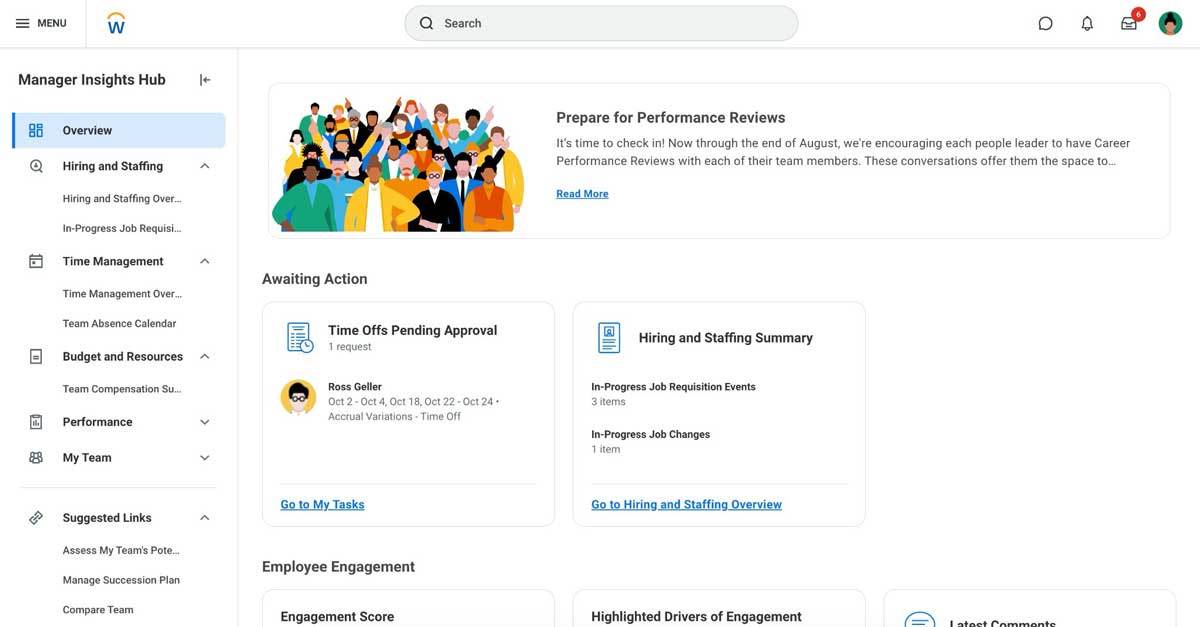
With the 2026 R1 Release, managers can now view onboarding progress and onboarding plans for their new hires. Summary cards can display ‘Overdue’ / ‘Due Soon’ tasks for their team, a Requires Attention card that highlights the most critical onboarding task for each worker, links to other useful reports, and more. Having this on the landing page gives your leaders a constant snapshot of their new hire progress.

Hiring & Staffing
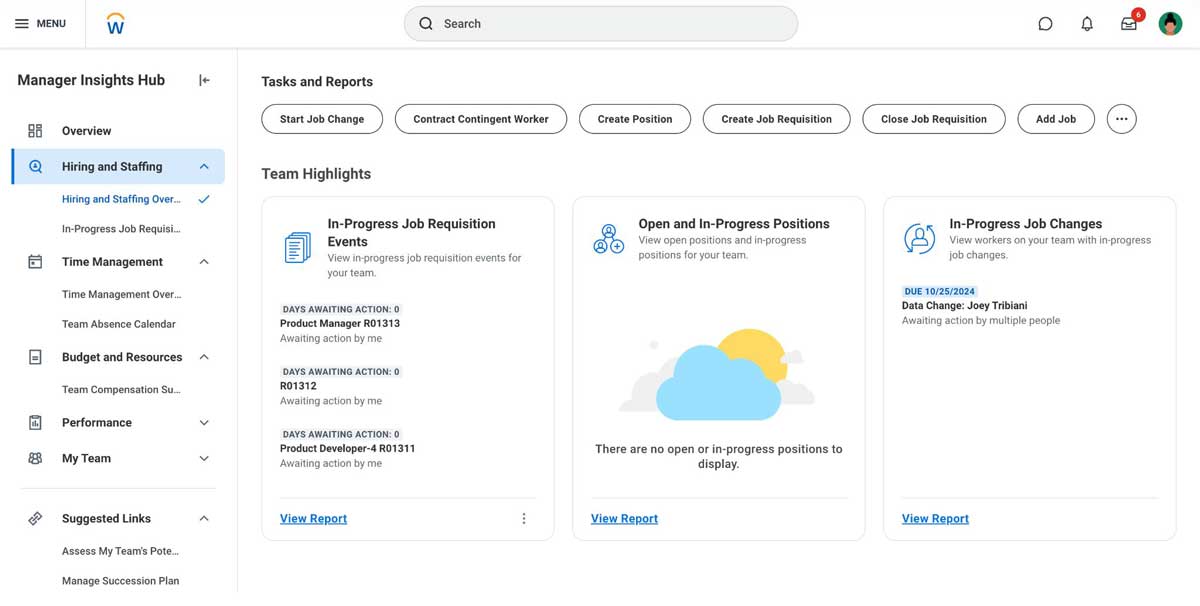
If your organization empowers managers to review and assist with the recruiting process, this section is a great place to consolidate different hiring tasks and reports. They can track open positions on their team, promotions, or title changes. This can help them review the entire employee life cycle and track headcounts.
Coupled with the onboarding planner, managers have real time results of when they can expect team members to be ready for work. Whereas the overview tab can show the highest priority items for onboarding, the Hiring and Staffing tab can provide a more in-depth analysis. Having insight to overdue Week 1 tasks allows managers to check-in on new hires and dig deeper into where they are getting stuck.
We have also worked with clients to report on overdue learning for new hires who are required to complete compliance training week 1.
Time & Scheduling
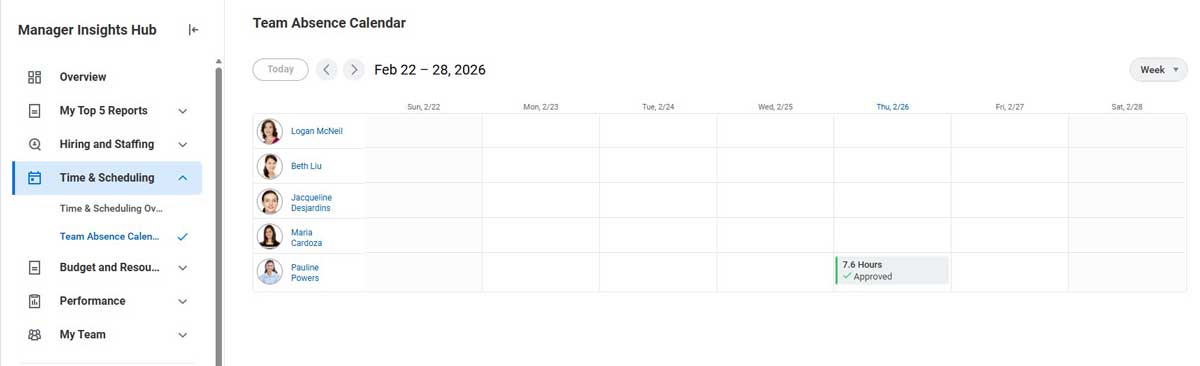
The Time & Scheduling section gives direct access to a team’s absence calendar, time off that is awaiting approval, and scheduled vs actual PTO. For real-time results, managers can identify overlapping vacations, plan project coverage, and track high risk periods like end of quarter.
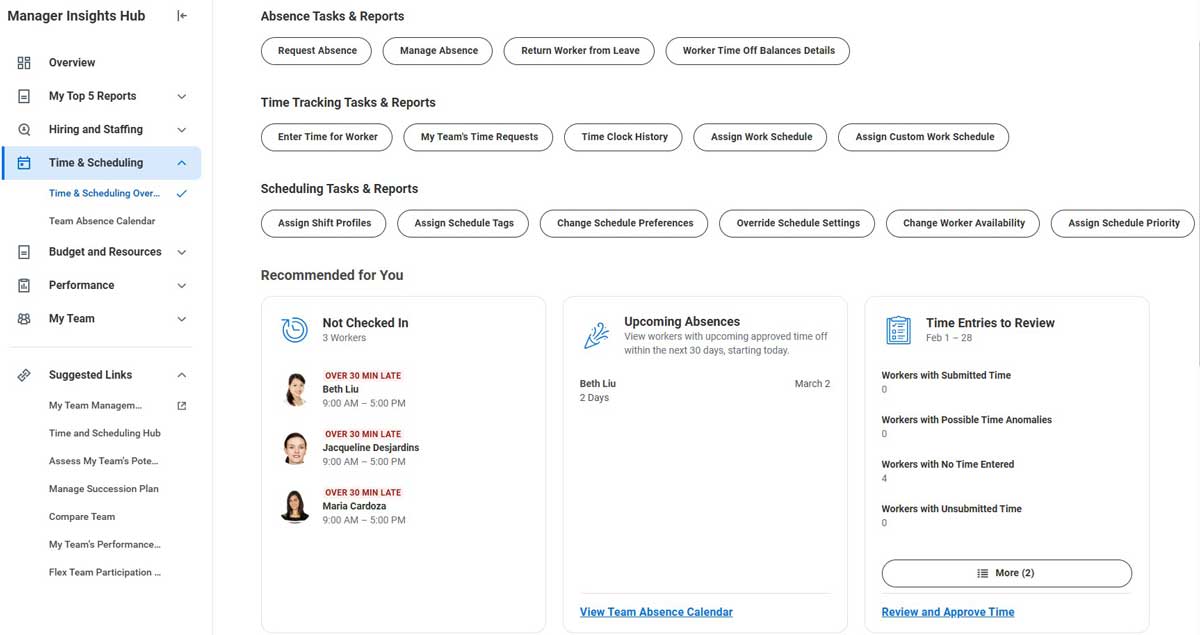
The Time & Scheduling tab provides managers with access to a wide variety of custom and delivered reports regarding their team’s absence, time clock history, checked in status, time entries to review, attendance scores, and more. There is no limit to the number of quick actions you can add – the most helpful ones we have seen include entering time or absence for a worker.
With mobile access, managers do not need to be sitting behind their computer to check the status of what an employee is doing. This is extremely helpful for managers who need to be onsite or on the floor with their team.
Budget & Resources
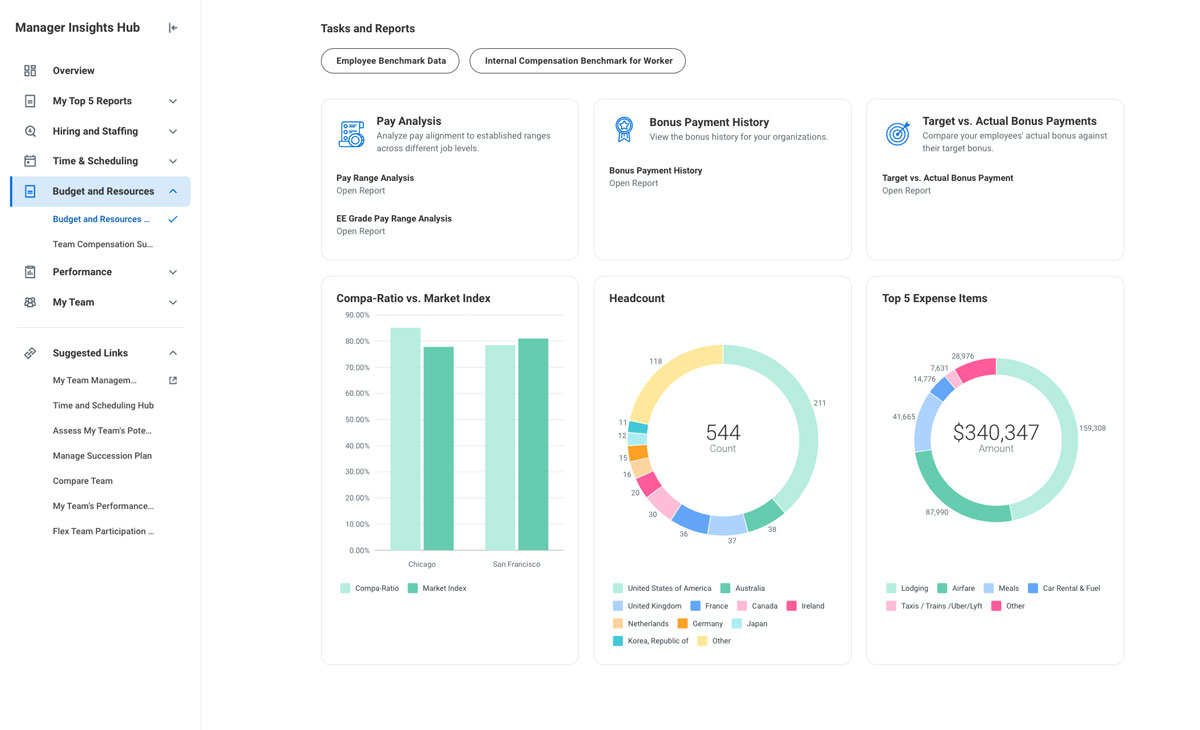
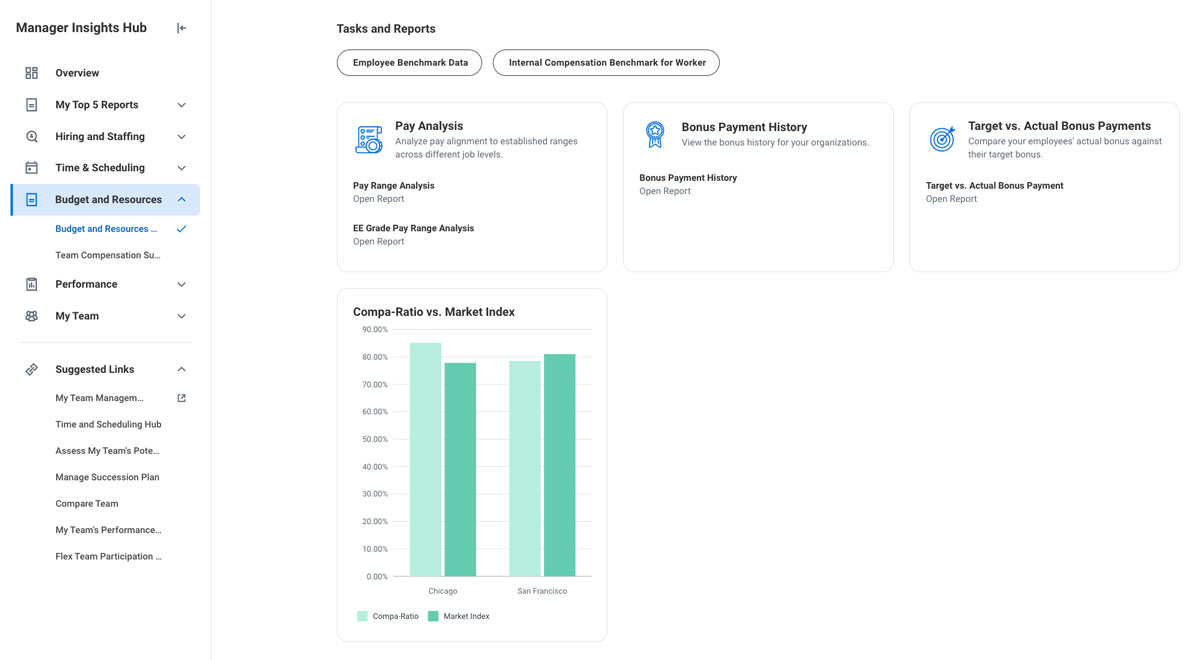
The Budget and Resources tab can be helpful for managers who want insight into an analysis of their team’s compensation, pay, expenses, and more. This tab can be enhanced with cards like Headcount, Top 5 Expense Items, Compa-Ratio vs Market Index, etc. While the Hiring & Staffing tab can help with position tracking, this tab is more focused on budgeting and pay analysis. You can also hide this tab if your managers do not work with this information!
Performance
The Performance tab can help with upskilling and development:
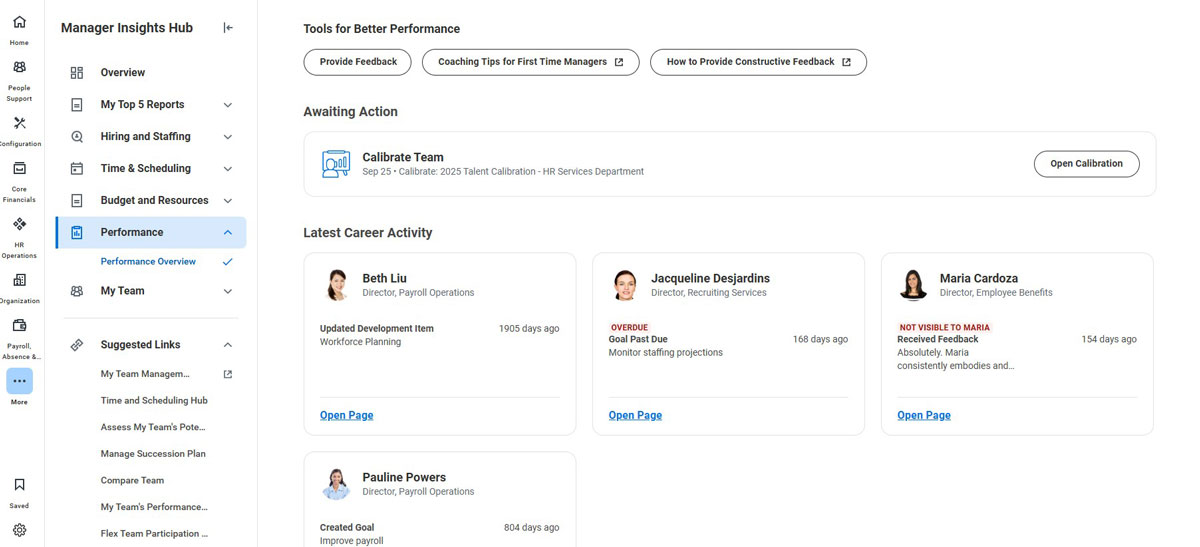
- Elevate this section during review season to provide your leaders with internal links, such as company branded guides for how to give constructive feedback, coaching tips for first time managers, and quick access to calibrating their team. This can help identify and promote career growth opportunities.
- Add reports like Employee Review Ratings Summary and My Team’s Goals to conveniently view the status of goals and ratings employees have received.
- Use alongside Peakon Employee Voice to further enhance the data and experience. Managers have access to a Peakon Dashboard that meets the visibility thresholds set by your organization and the Engagement question. Both can be tied into the hub to provide your leaders with real-time insight into employee engagement surveys and more.
Configurable Cards
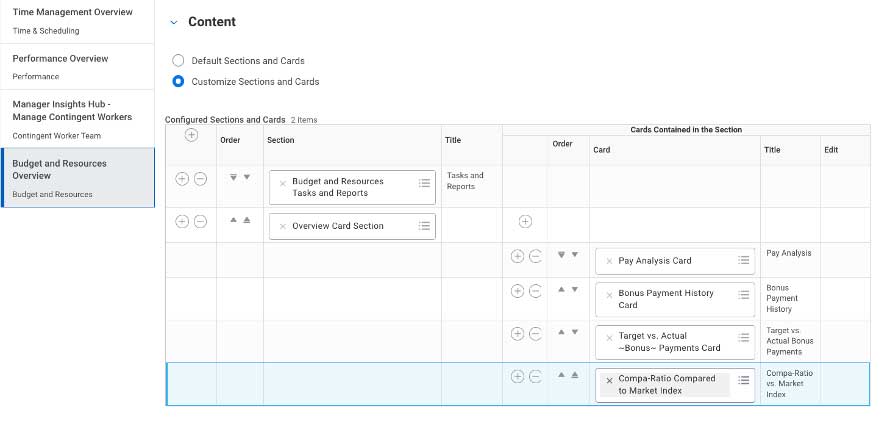
New with the 2026 R1 release, you now have the ability to add custom cards to each section. This is the best way to enhance the previous sections – allowing you to add new visualizations, images, and more. Before, these would have to live as links in the quick actions section or as an announcement.
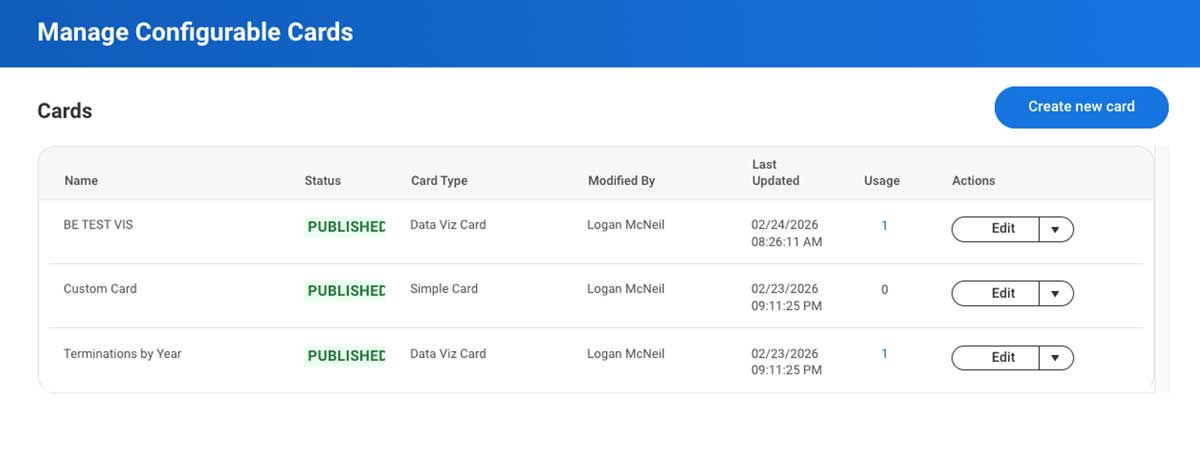
The following steps show you how to create a Configurable Card:
Select the ‘Create new card’ button on the Manage Configurable Cards task.
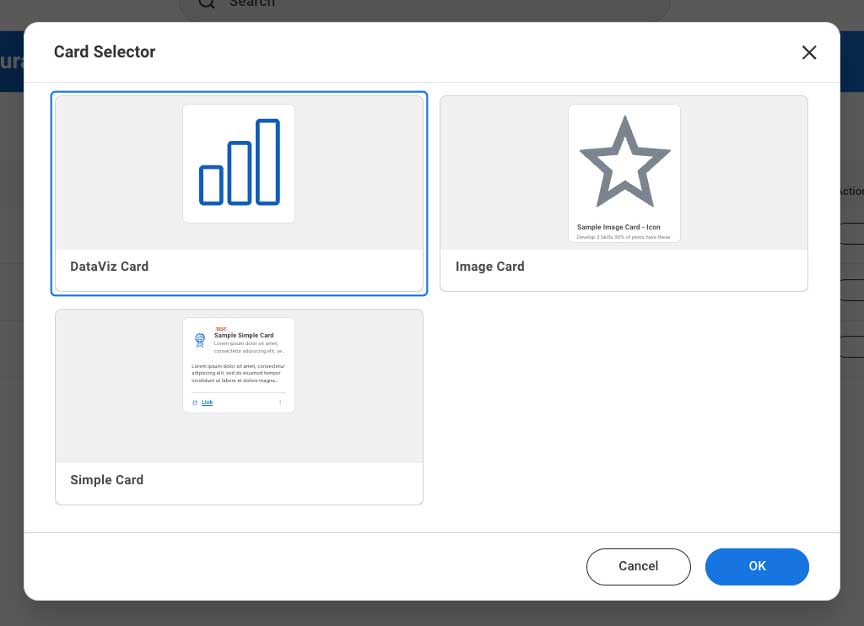
Select the type of card you would like to create, then click OK.
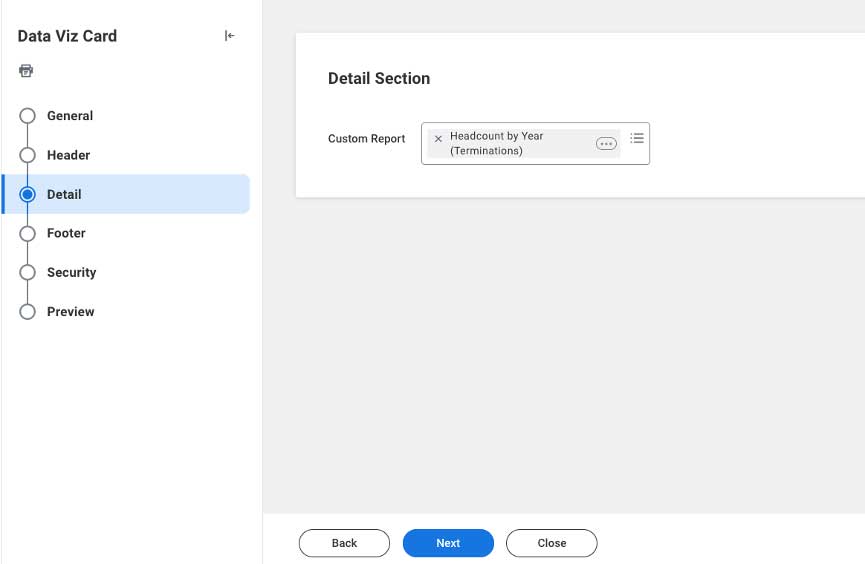
Name the general section, give it a header, and then select the report you would like to transform into a card.
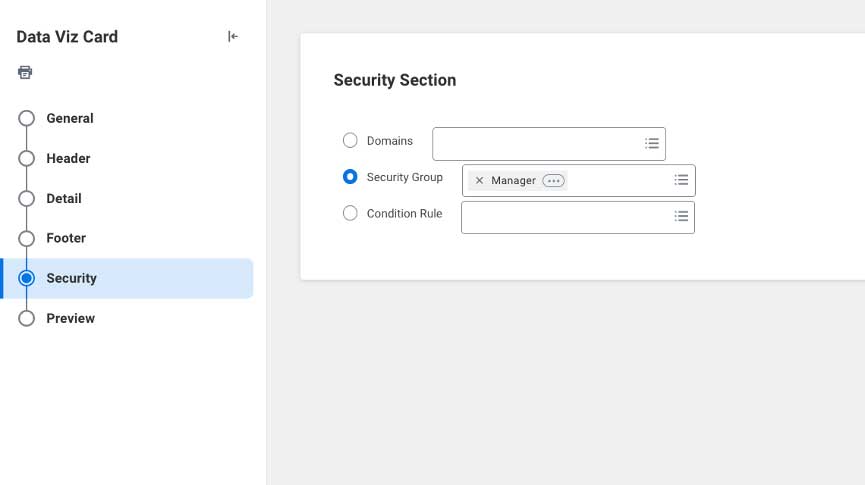
Select the domains, security group(s) or a condition rule to determine who can view/access the card, and click Next, then OK.
Return to the Manage Configurable Cards task, click the drop-down arrow, and select publish.
Once the card is published, you can go to the Maintain Hubs report, select which hub you would like to display the card on, add the card to the desired section, and click OK.
This is what the Compa-Ratio vs. Market Index card looks like, displayed on the Budget and Resources tab of the Manager Insights Hub.
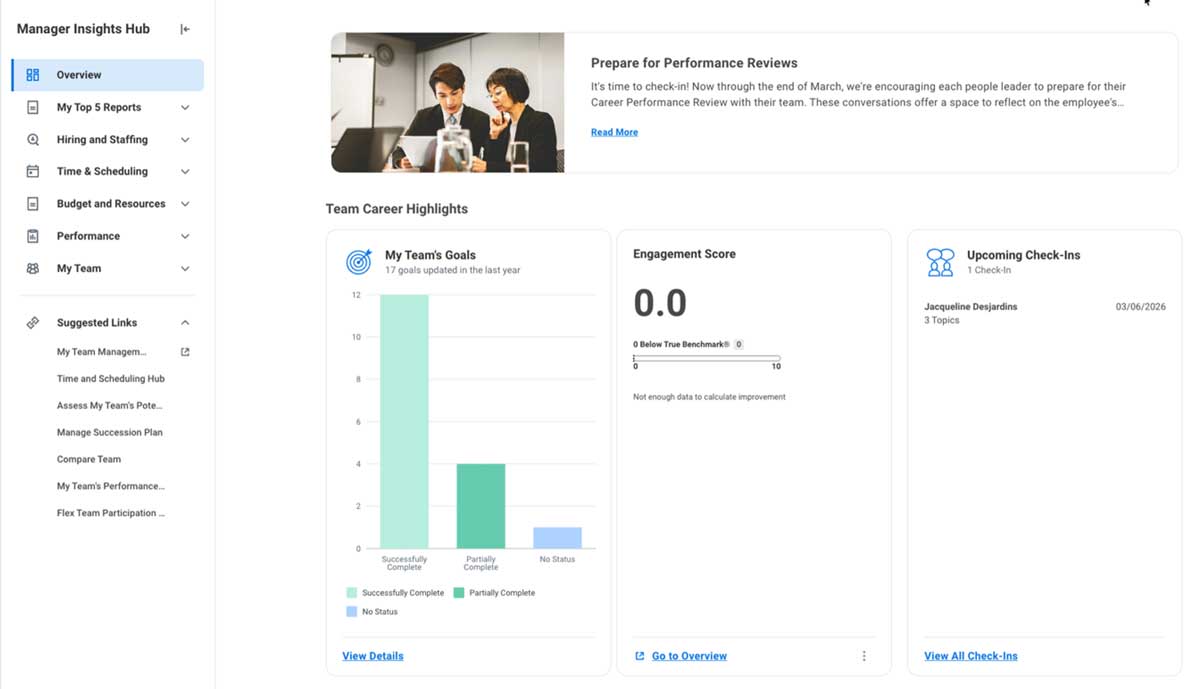
These are some useful cards that could be added to the Overview tab of the hub.
The Workday Manager Insights Hub is a valuable resource. It is a customizable, single-source dashboard providing managers with clarity, context, and the ability to act.
By centralizing team insights, surfacing AI-driven recommendations, and simplifying everyday actions, it transforms management from reactive task handling into proactive leadership.